

Spam calls, robocalls and unwanted texts have become so common that most of us receive them on a fairly regular basis. A spoofed number, a persistent telemarketer, or a flood of spammy texts can feel both annoying and unnerving. Blocking unwanted contact is one of the quickest ways to guard your phone number (and your sanity), from an onslaught of spam, “Scam Likely,” and other unsolicited calls.
Luckily, blocking a number is simple to do on landlines, and both iPhone and Android handsets – with available tools that go beyond basic call blocking if you need additional privacy or call control.
This guide walks you through every method step-by-step, plus how to stop robocalls, silence unknown numbers, minimize voicemail spam and use privacy tools like forwarding and virtual numbers.
- Why Blocking Numbers Matters
- How to Block Calls on iPhone
- How to Block Calls on Android
- How to Stop Robocalls
- Do Not Disturb Mode & Turning Off Voicemail
- Turning Off Voicemail
Why Blocking Numbers Matters
Blocking isn’t just about convenience and stopping annoying calls – it can also be about safety and digital hygiene.
You might block a number because:
- You’re getting repeated spam or fraud attempts.
- A scammer is spoofing multiple numbers.
- You’re receiving unwanted personal contact.
- You want to reduce interruptions from unknown callers.
- Your business line is being targeted by robocalls.
- Someone is leaving spam voicemails or repeated missed calls.
Blocking helps break the loop for you.
How to Block Calls on iPhone
Blocking a number on an iPhone takes only a few taps. Here are the most common methods.
Method 1: Block a Number From Your Recents List
- Open the Phone app.
- Tap “Recents.”
- Find the number you want to block.
- Tap the “info” (i) icon.
- Scroll down and tap “Block Caller.”
- Confirm: Block Caller.
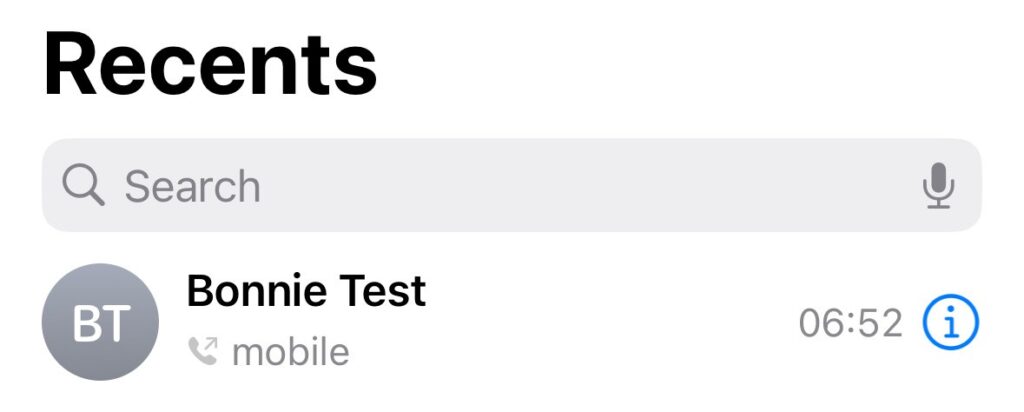
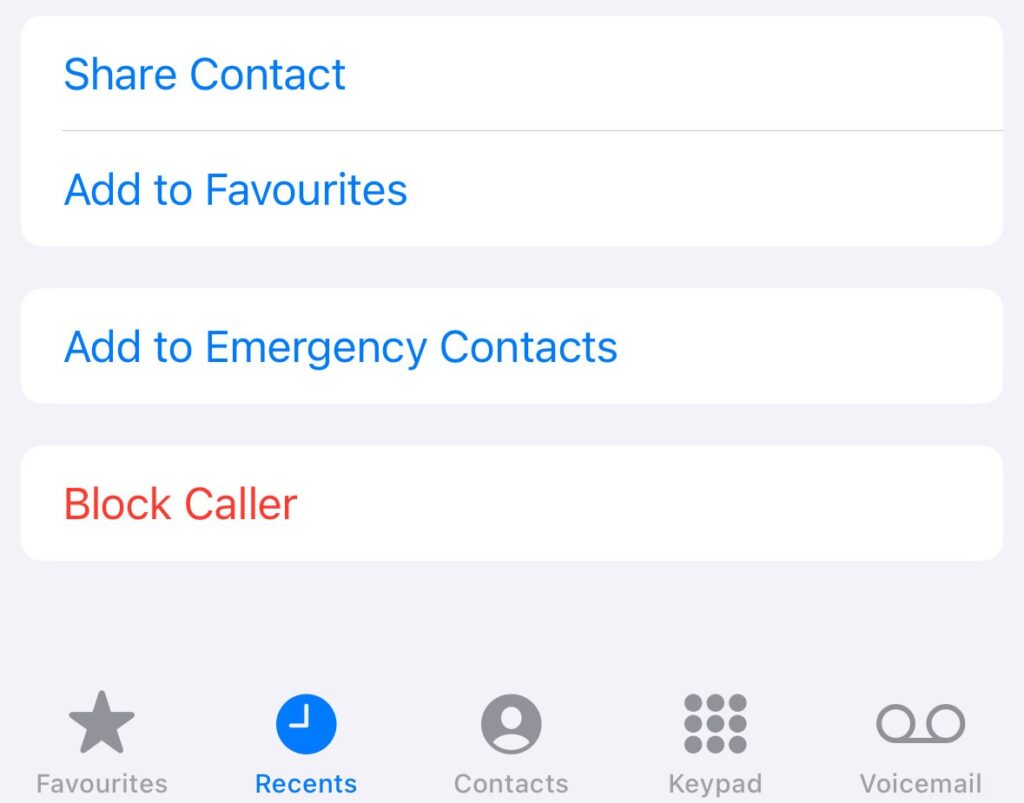
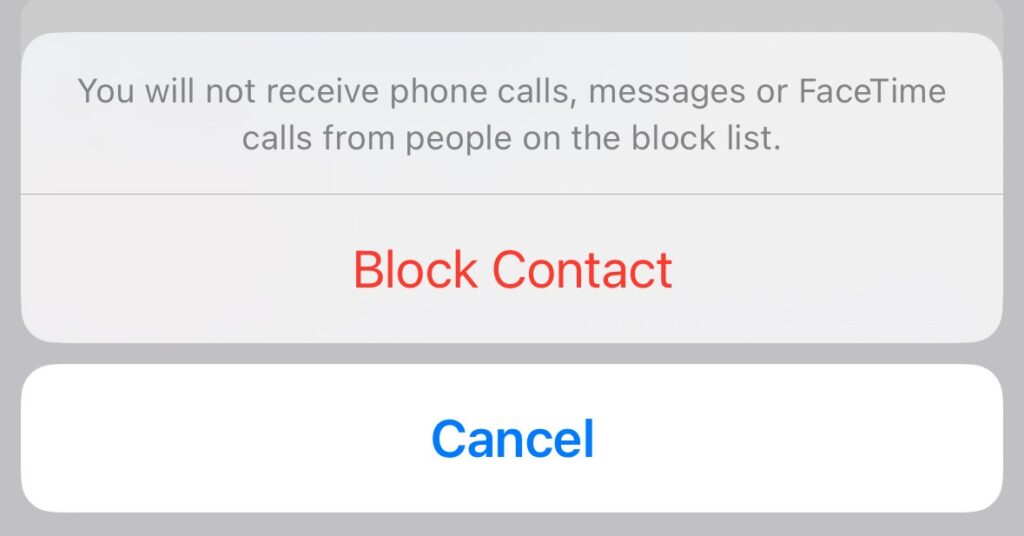
This method blocks calls, texts, and FaceTime from that number.
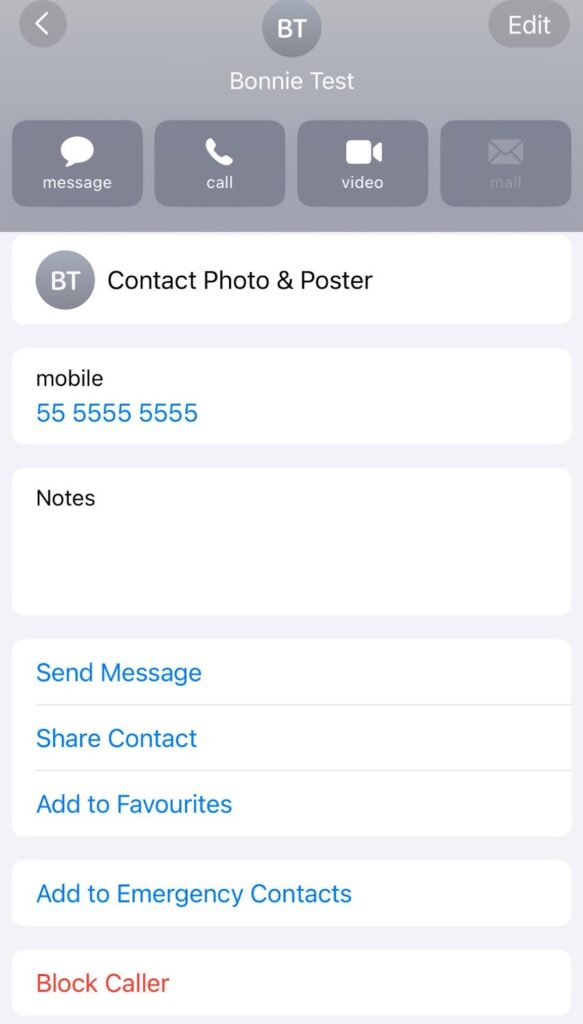
Method 2: Block a Number From Contacts
- Open “Contacts.”
- Select the person.
- Scroll and tap “Block this Caller.”
Method 3: Block Unknown Callers (iPhone)
This is useful if you want calls only from people you know.
- Go to “Settings.”
- Search “Phone.”
- Tap “Silence Unknown Callers.”
- Toggle it on.
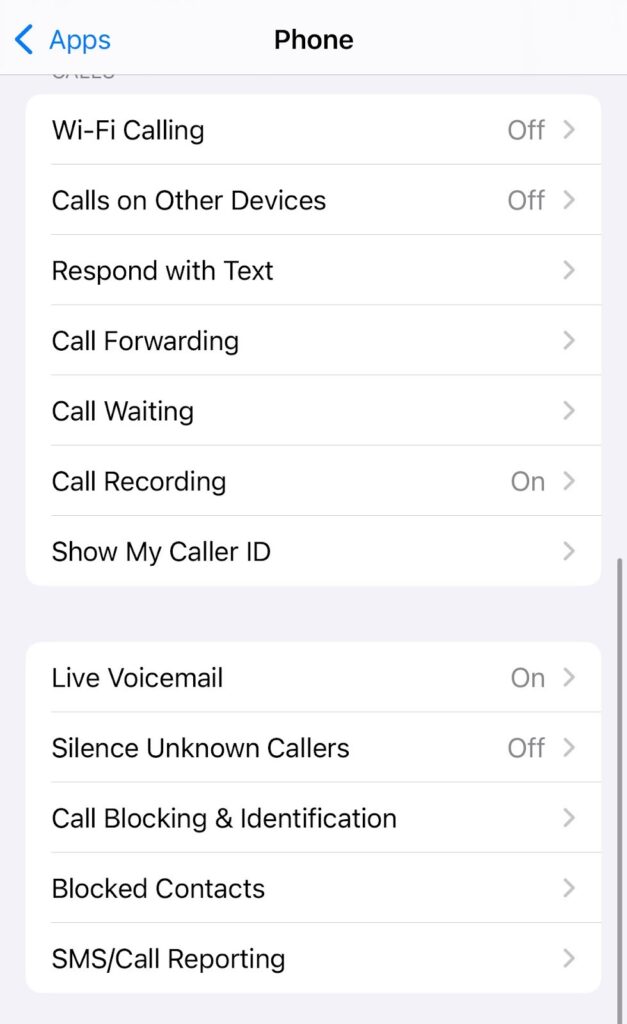
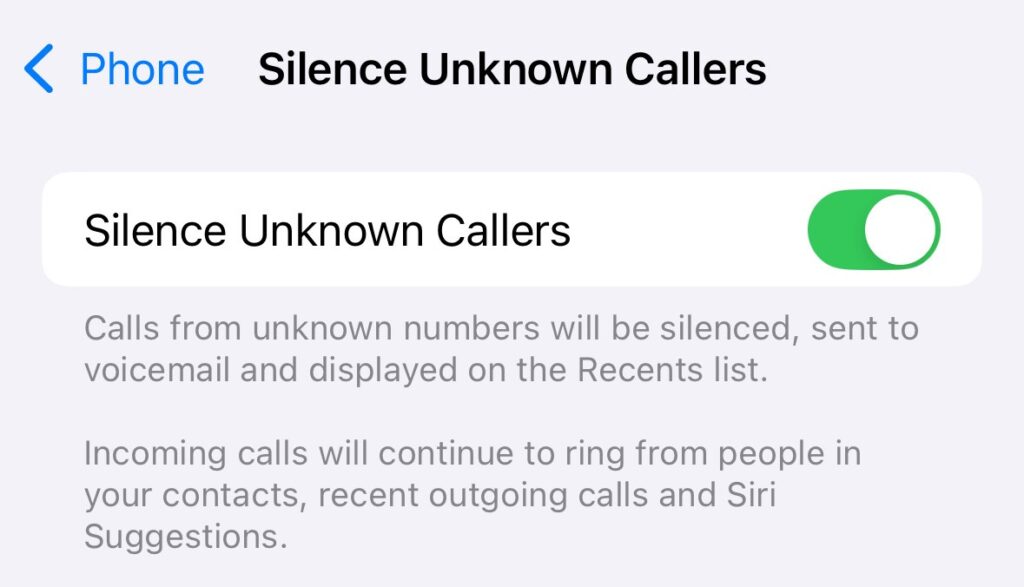
Unknown numbers will go straight to voicemail, but will still appear in Recents.
How to Block Calls on Android
Android menus vary slightly by manufacturer, but blocking is straightforward across devices.
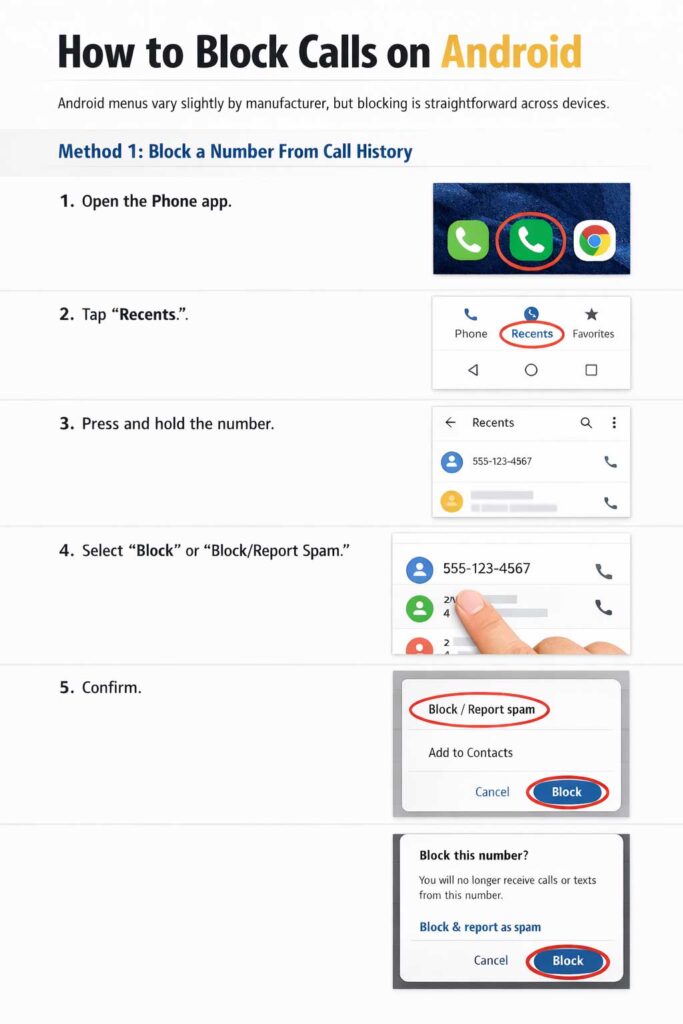
Method 1: Block a Number From Call History
- Open the Phone app.
- Tap “Recents.”
- Press and hold the number.
- Select “Block or Block/Report Spam.”
- Confirm.
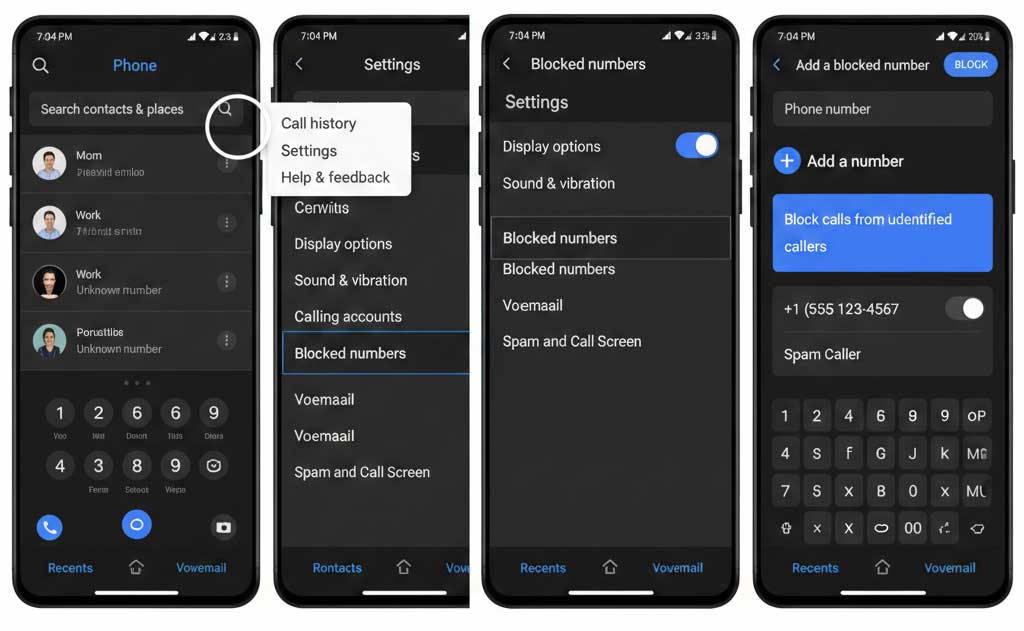
Method 2: Use Phone App Settings
- Open the Phone app.
- Tap the three dots (top right).
- Tap “Settings.”
- Select “Blocked numbers.”
- Tap “Add a number.”
- Enter the number you want to block.
Blocking Unknown or Private Numbers
If you’re getting calls from “Unknown,” “Private,” or “No Caller ID,” here are your options:
iPhone: Block Unknown Callers
Settings → Phone → Silence Unknown Callers
This sends all unknown numbers directly to voicemail. Saved contacts still ring.
Samsung: Block Unknown/Private Numbers
Phone app → Three dots → Settings → Block numbers → Toggle Block unknown/private numbers
Android (Pixel): Block Unknown Numbers
Phone app → Settings → Caller ID & spam → Toggle Unknown callers
An important note:
Blocking “Unknown,” “Private,” “No Caller ID,” or “Withheld” callers stops most anonymous calls – but note that emergency services, government agencies and some toll-free lines may still come through.
How to Stop Robocalls
Robocalls come from random numbers, spoofed caller ID or auto-dialers. Basic blocking alone won’t always stop them, but these steps can help significantly.
Enable Carrier-Level Robocall Protection
Most US carriers offer free or low-cost tools:
- AT&T Call Protect
- Verizon Call Filter
- T-Mobile Scam Shield
They detect high-risk spam before it reaches your phone.
Use Built-In Call Filtering (Android & iPhone)
- iPhone: Settings → Phone → Silence Unknown Callers
- Android/Pixel: Phone App → Settings → Caller ID & spam
Use a Secondary or Forwarding Number
This is especially helpful for small businesses or online sellers. Forwarded numbers keep your actual personal line private.
Get Additional Control
NumberBarn allows you to:
- Use a forwarding number instead of your real number.
- Store and keep a number private with parking.
- Review call logs for suspicious activity.
- Control how calls are routed.
- Use custom voicemail messages to avoid sharing personal details.
These tools are helpful if blocking alone isn’t enough.
Do Not Disturb Mode & Turning Off Voicemail
If you want fewer interruptions – without fully blocking numbers – these features help.
What Happens on Do Not Disturb?
- All calls are silenced (with the allowance of favorites if you choose).
- You can allow repeat calls (useful for emergencies).
- Notifications are dimmed or hidden.
Here’s how to do it:
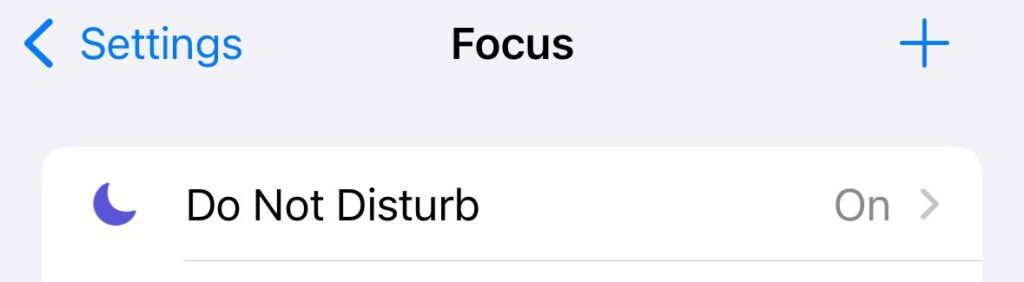
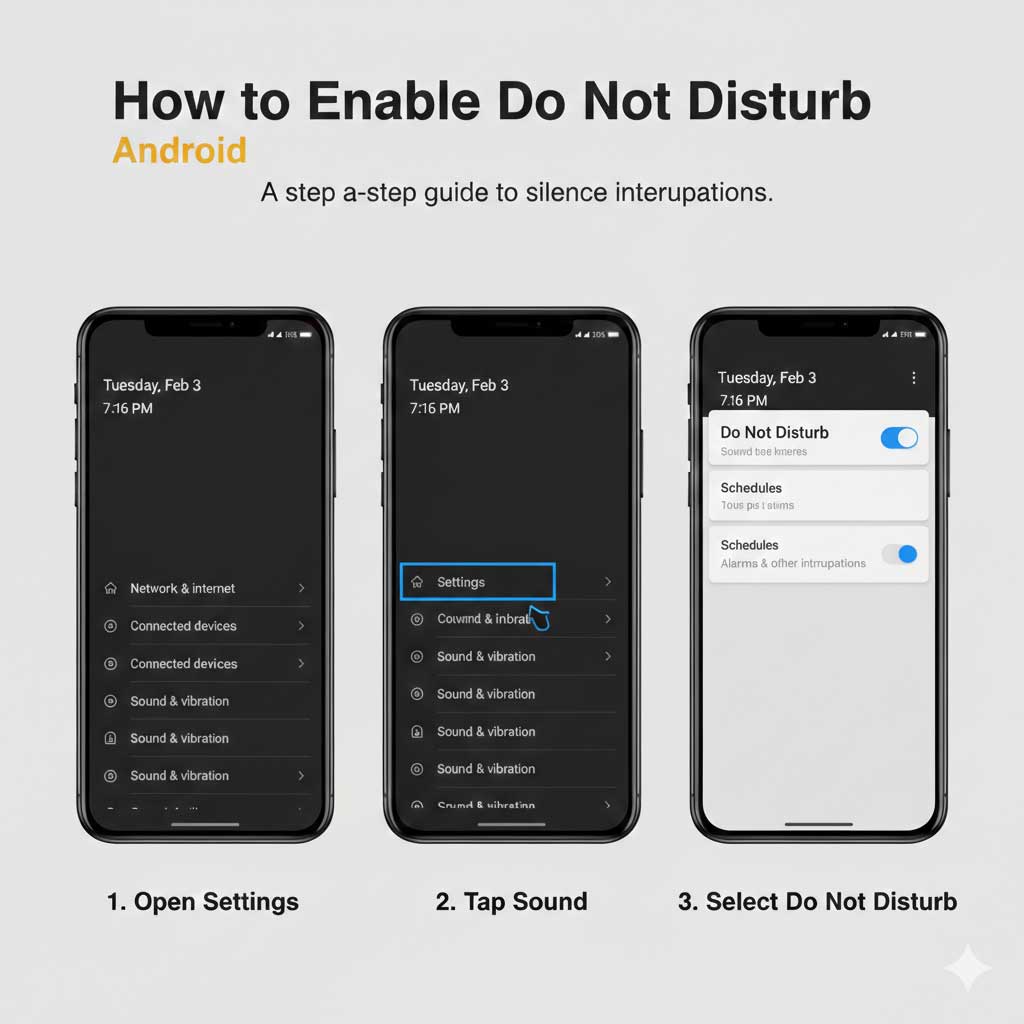
Do Not Disturb (iPhone & Android)
Lets you silence all calls except favorites.
iPhone:
Settings → Focus → Do Not Disturb
Android:
Settings → Sound → Do Not Disturb
Turning Off Voicemail
Most carriers do not allow voicemail to be fully disabled, but you can:
- Use conditional call forwarding.
- Use a virtual number with no voicemail.
- Set your number to route calls however you prefer.
This prevents voicemail inbox spam or repeated spam messages.
When to Use Advanced Blocking Tools
If blocking one number isn’t enough – or scammers keep rotating through new numbers – you may need more advanced controls.
Services like NumberBarn allow you to:
- Forward calls safely.
- Keep your personal number private.
- Use a secondary number for business.
- Park your number to remove it from public use.
- Customize how calls are handled.
- Monitor call attempts via call logs.
Blocking a phone number is one of the simplest steps you can take to reclaim your phone from spam, unwanted callers or constant interruptions. The tools built into iPhone, Android and carrier systems give you quick, reliable control. And if you need deeper protection – separating work and personal calls, reducing exposure online or shielding your real number entirely – services like NumberBarn offer a more flexible layer of privacy.
The most important thing is that you choose the level of blocking that fits your life. For some, that’s a one-tap block on an iPhone. For others, it’s advanced filtering, voicemail control or a forwarding number for safer interactions.
Whatever your situation, you can take advantage of these tips to help stop unwanted calls, and receive incoming calls and texts on your terms.