

Your phone number is tied to almost everything you do – banking, deliveries, job applications, medical appointments, even multi-factor authentication. When you make a call, your number may reveal more than you expect: your location, your identity, or a link back to your personal line.
Sometimes, you want to make a call without sharing your number – you may want to return a call from an unknown business, protect your personal information, avoid unwanted callbacks, or simply keep work and personal life separate.
Hiding your number is simple, whether you want a one-off anonymous call or a permanent caller ID block. Below, you’ll find step-by-step instructions for iPhone and Android, plus additional privacy tools and options.
- Why You Might Want to Hide Your Phone Number
- How to Hide or Block Your Number on iPhone
- Hide Your Number for a Single Call on iPhone (Using *67)
- Hide Your Number for Specific Contacts
- How to Hide or Block Your Number on Android
- Hide Your Number for a Single Call on Android (*67)
- How NumberBarn Helps Protect Your Number
- FAQ
Why You Might Want to Hide Your Phone Number
People block their numbers for all kinds of reasons:
- Privacy: You don’t want strangers or businesses to have your direct number.
- Safety: You’re responding to listings, ads, or unknown contacts.
- Avoiding spam: Once your number is in a database, unwanted calls can increase.
- Business boundaries: You want to keep work and personal numbers separate.
- One-time anonymity: You’re making a single call you don’t want tied back to you (to a classified for instance).
You can hide your number temporarily or permanently – it all depends on how much privacy you want.
How to Hide or Block Your Number on iPhone
There are three main ways to hide your caller ID on iPhone. Below is the simplest method, plus alternatives for carriers that disable certain settings.
Hide Your Number on iPhone (Permanent Caller ID Block)
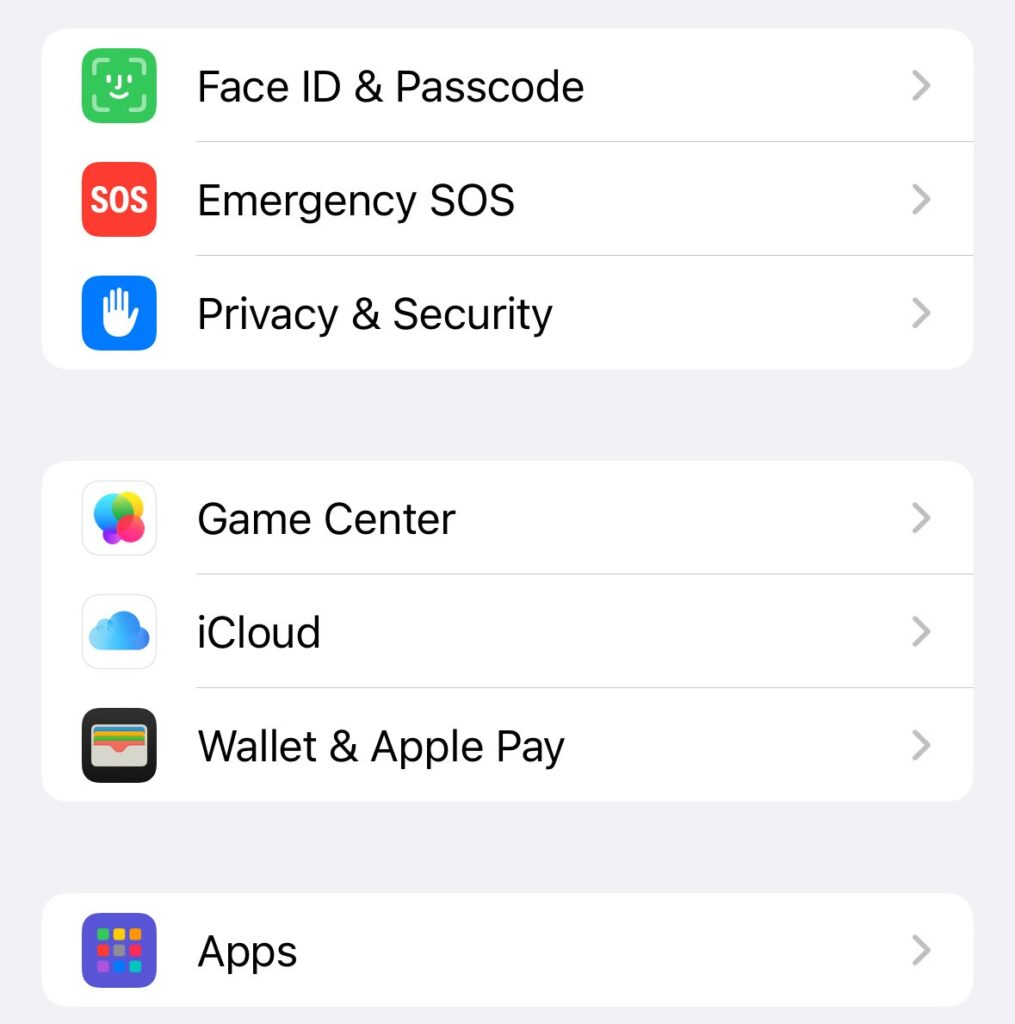
- Open Settings → Apps
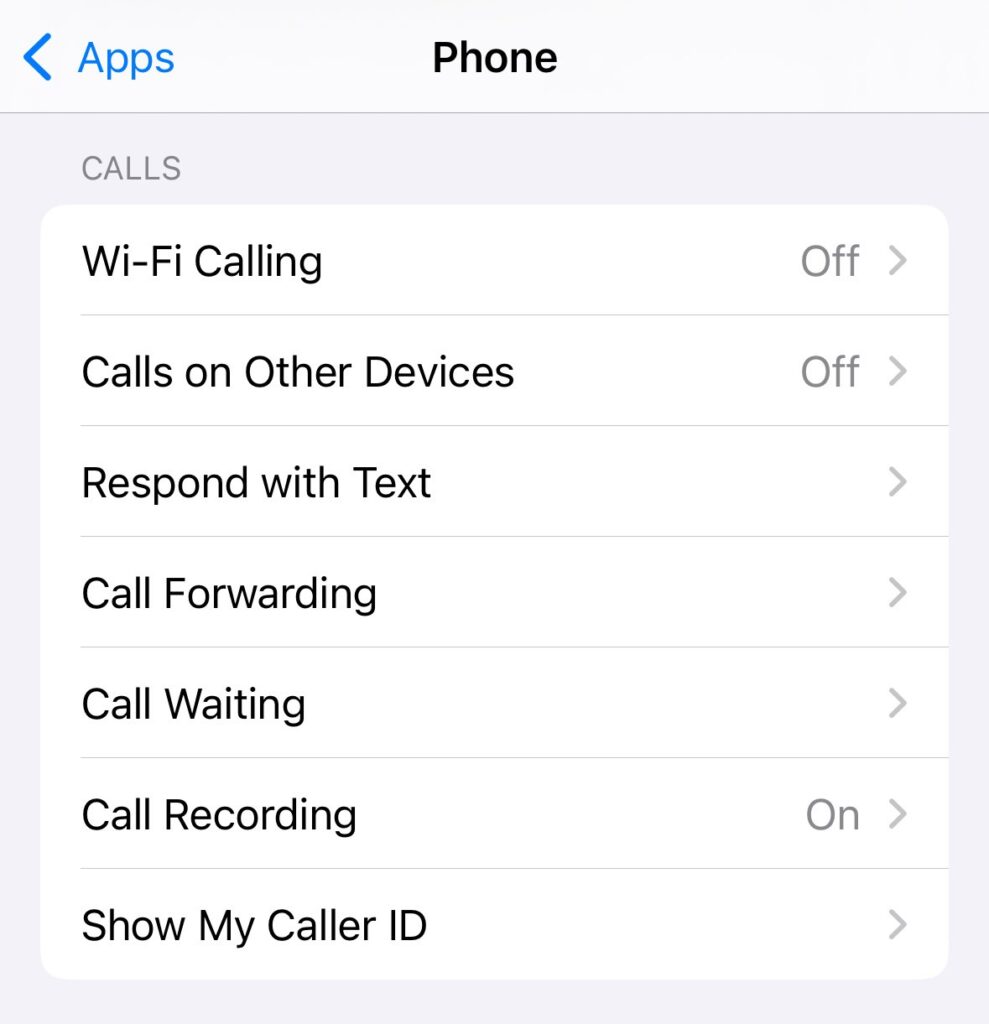
- Search “Phone”
- Tap “Show My Caller ID”
- Toggle “Show My Caller ID” off
When this toggle is off, your number is hidden on all outgoing calls.
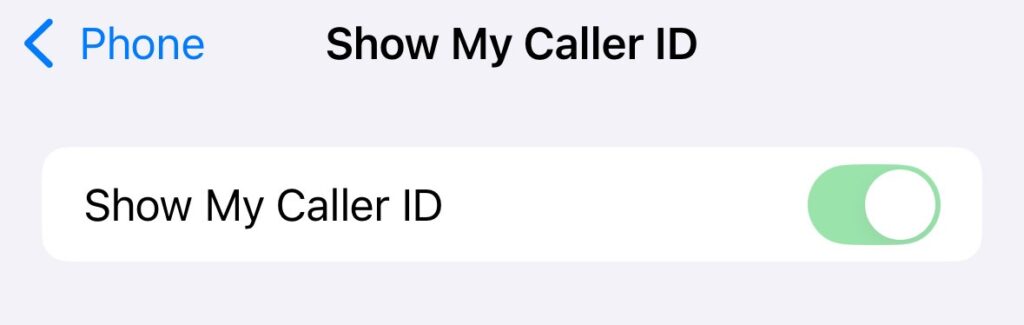
Something to note: some carriers disable this toggle. If you don’t see it, use *67 or contact your carrier to request blocking.
Hide Your Number for a Single Call on iPhone (Using *67)
If you only want to hide your number once:
- Dial *67, then the number you want to call
- Example: *67 555-555-5555
- Example: *67 555-555-5555
Your number will appear as “Private” or “Blocked” for that call only.
This works on nearly all US carriers.
Hide Your Number for Specific Contacts
If you want to block your number only for certain people:
- Open the Phone app
- Tap the “Contacts” tab
- Select a contact
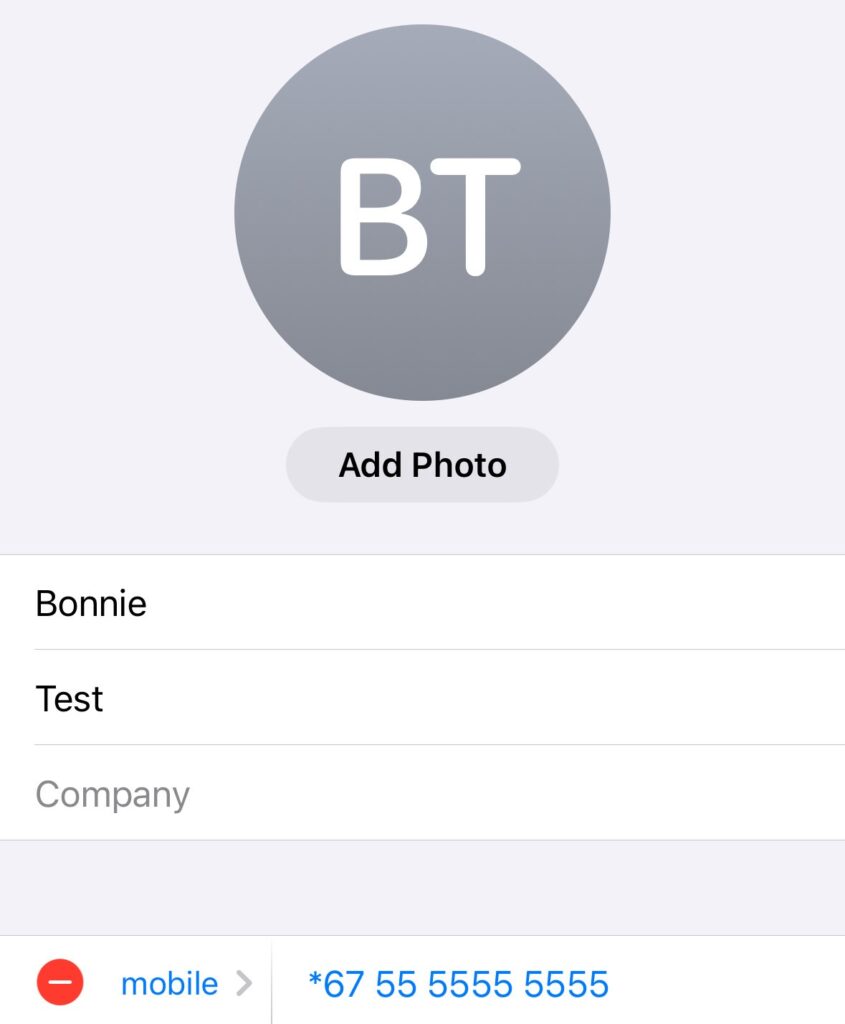
- Tap “Edit” (top right)
- Add *67 before their stored number
How to Hide or Block Your Number on Android
The steps to block your number vary slightly depending on your Android model (Samsung, Google Pixel, Motorola), but the general process is the same.
Hide Your Number on Android (Permanent Caller ID Block)
- Open the Phone app
- Tap the three dots (top right)
- Select “Settings”
- Tap “Calling accounts” or “Calls”
- Tap “Additional settings” or “Supplementary services”
- Tap “Caller ID”
- Choose “Hide number”
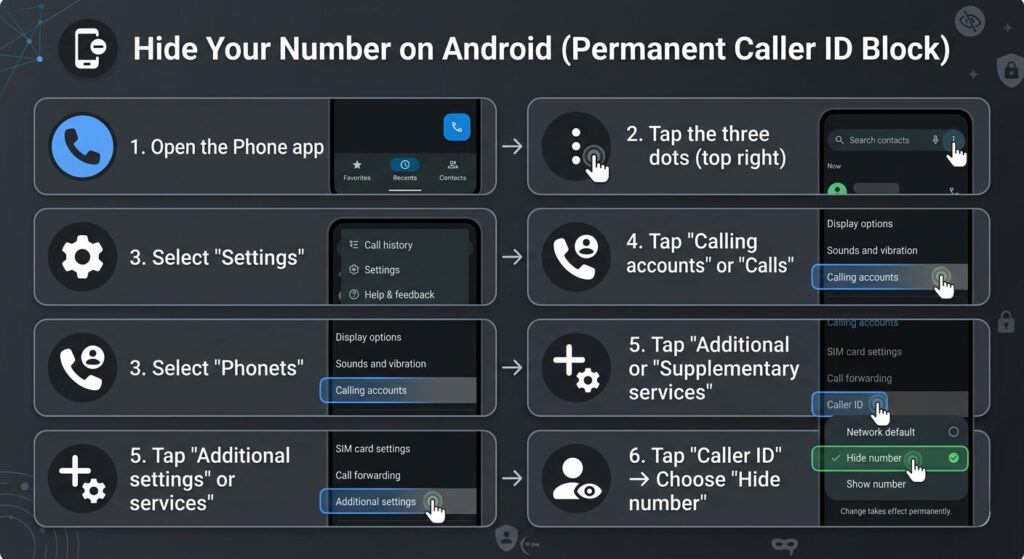
This hides your number for all outgoing calls.
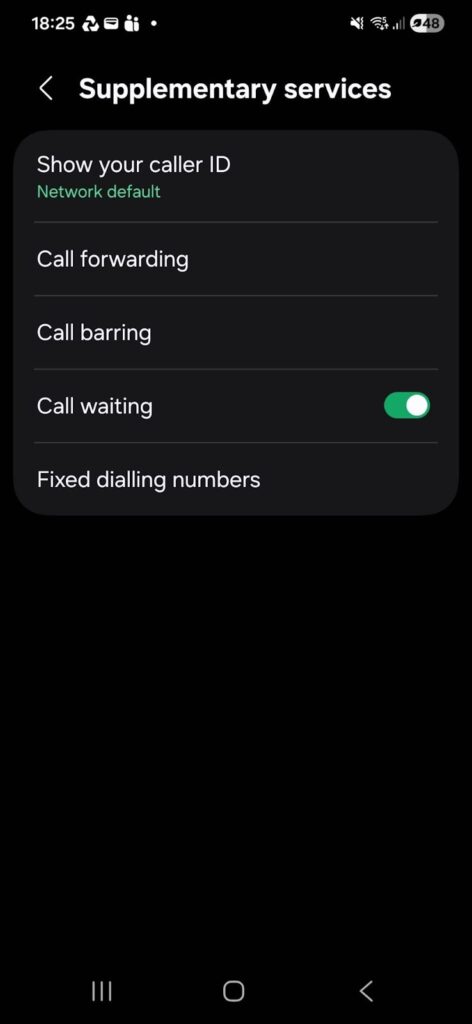
Hide Your Number on Samsung Devices
Samsung menus look slightly different:
- Open the Phone app
- Tap the three dots
- Tap “Settings”
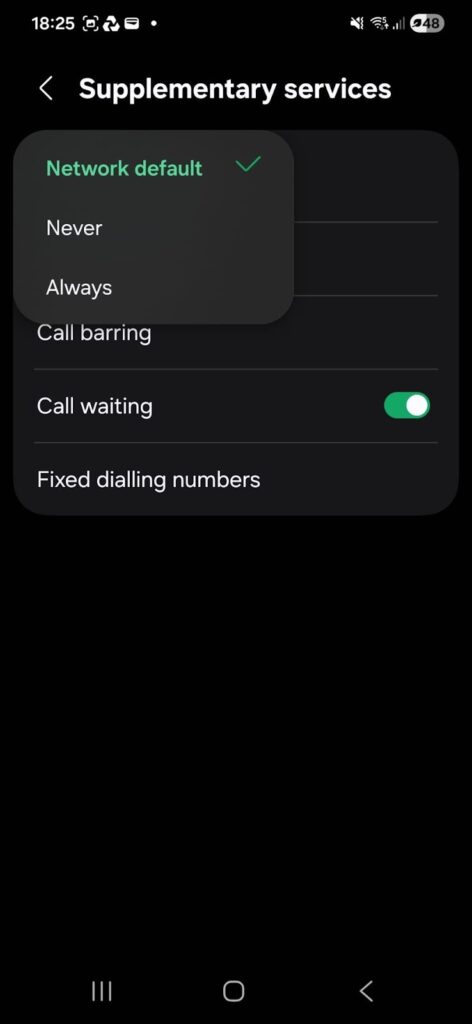
- Tap “Supplementary services”
- Tap “Show caller ID”
- Select “Never”
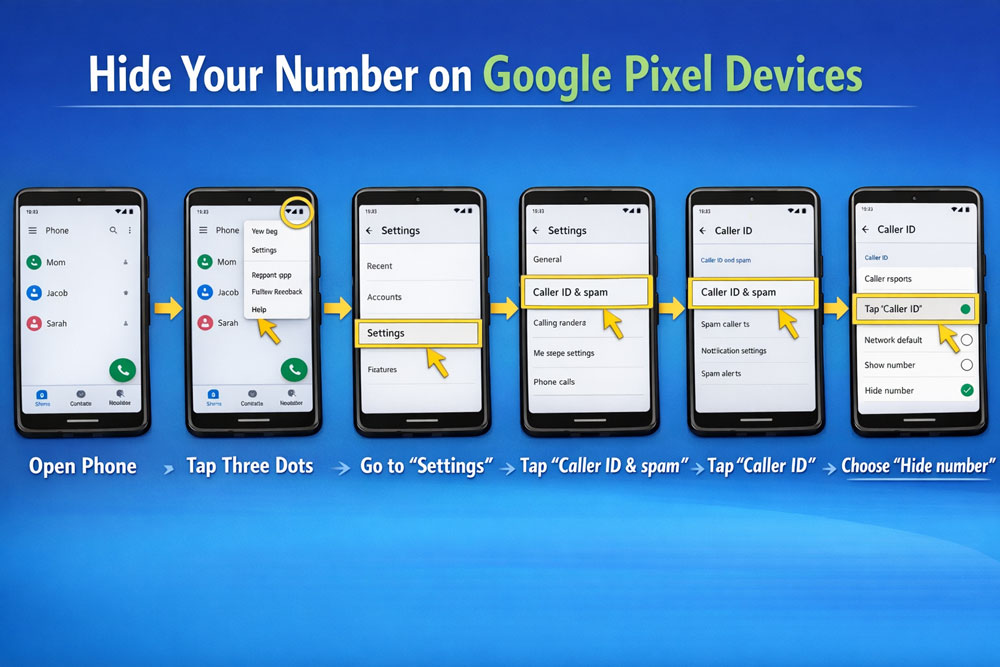
Hide Your Number on Google Pixel Devices
- Open Phone
- Tap three dots
- Go to “Settings”
- Tap “Caller ID & spam”
- Tap “Caller ID”
- Choose “Hide number”
Hide Your Number for a Single Call on Android (*67)
This is the same process as iPhone:
- Dial *67 before the number
- Example: *67 555-555-5555
Dialing *67 first is the quickest universal method.
Other Ways to Hide or Block Your Number
Hiding caller ID through your phone settings is the most straightforward option, but there are additional privacy tools if you want more control.
Use Carrier Settings to Block Your Number
Most US carriers let you request a permanent block:
- AT&T: Ask for “Caller ID Block”
- Verizon: Request “Block Caller ID”
- T-Mobile: Enable “Caller ID Block” through your account
These override your phone settings.
Use a Virtual or Secondary Number
If you want a number you can share freely without exposing your real line, you can use a:
These options help keep your real number private and can even offer more flexible options for features and functionality.
Use a Third-Party Privacy or Calling App
Also called “disposable phone numbers,” many apps and services can generate temporary anonymous numbers for classifieds, selling items or one-time interactions.
These tools let you:
- Protect your real number.
- Use a temporary number.
- Keep work/personal life separate.
But beware – temporary, disposable phone numbers come with risks and can easily get mistaken for fraud and spam.
How NumberBarn Helps Protect Your Number
Getting a secondary phone number with NumberBarn offers privacy tools that go beyond simply hiding caller ID on your mobile device. You can:
Park a number
Remove your number from public use while keeping ownership. (Learn more here.)
Use a forwarding number
Give others a number that routes through to your real number – without revealing it.
Create custom voicemail greetings
Avoid sharing personal info on outgoing messages.
Access call logs
Monitor who attempts to contact your line.
Control caller ID settings
Forwarded calls keep your personal number caller ID private.
If you want deeper privacy – virtual numbers, call forwarding, or number parking services can offer an extra layer of protection without complicating how you use your current phone. The right option just depends on how often you need privacy – and how visible you want your number to be.
Hiding your phone number is one of the easiest ways to help protect your privacy. Blocking your number can help you stay anonymous for a single call, keep your personal number off business records, or fully separate work and home life. You get to decide what you share – and when.
FAQ
Does *67 still work?
Yes – it’s still the quickest way to hide your number for one call.
Does hiding caller ID hide my number when texting?
No. SMS messages always show your number.
Can businesses still see my number if caller ID is blocked?
Some toll-free numbers and emergency services may receive your number automatically.
Why can’t I see the “Show My Caller ID” toggle on my iPhone?
Some carriers disable it. In this instance, you may need to call your provider to enable blocking.
Does hiding my number work internationally?
It depends on the country and carrier – *67 may not function outside the US.