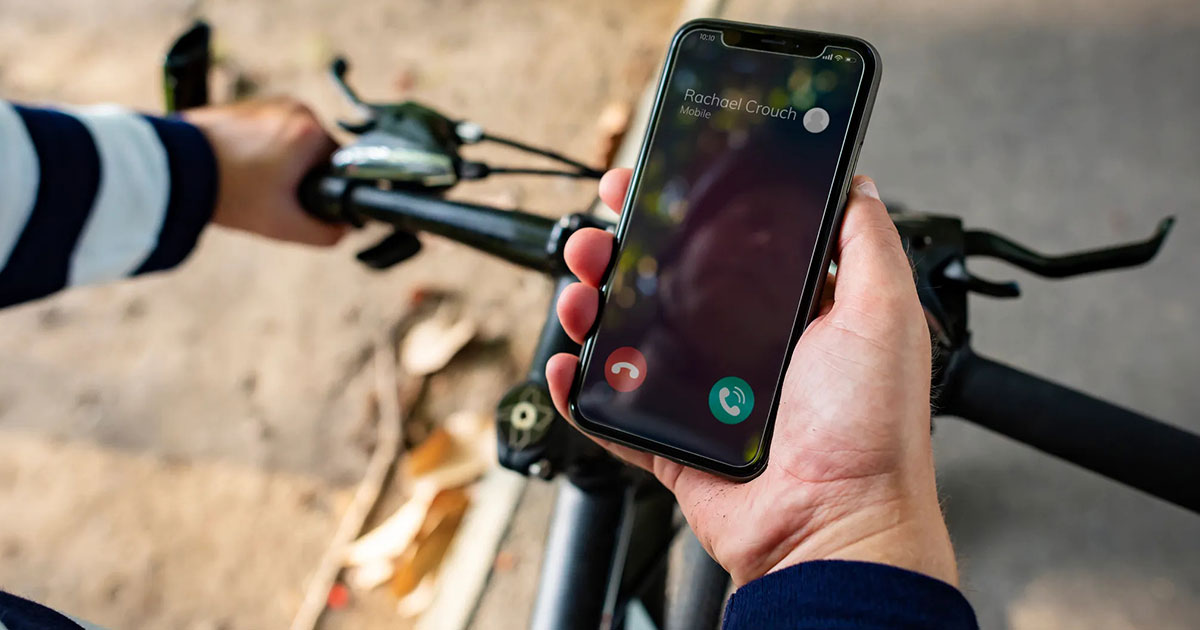
Caller ID might seem like a small detail, but when it’s wrong or missing entirely, it can cause real problems.
Maybe your phone shows an old business name. Maybe it says “Wireless Caller” instead of something recognizable. Or maybe your calls aren’t being answered at all because people don’t trust what they see on their screen.
If you’re wondering how to update your Caller ID, the short answer is: it’s possible — but how you do it depends on who controls your number.
Before you can know how to correct your caller ID, you need to understand how it works, which will help you identify if and how you can change your caller ID.
How Caller ID Works
Caller ID relies on two separate parts controlled by different people.
With millions of phone numbers circulating in the universe of available numbers, incorrect or outdated Caller ID information is fairly common.
In most cases, the issue is with how your number is stored in carrier databases and how that information is shared between networks. That’s why Caller ID problems can be frustrating: the fix isn’t always obvious, even when your settings look correct.
Caller ID is made up of two parts:
- The Caller ID number (your phone number)
- The Caller ID name (the text that appears alongside it)
Each name is typically stored in Caller ID Name databases (sometimes abbreviated “CNAM”). These are maintained by carriers and third-party providers.
When you place a call, the receiving carrier performs a pull-based lookup. That means it checks its own database (or a partner database) to decide what name to display. This is how the same number can sometimes appear differently, depending on who you’re calling.
And if no name is found by that database? Your call may show as:
- “Wireless Caller”
- “Unknown”
- Or, just the phone number
This is why Caller ID issues can be inconsistent and confusing; the info you see on the screen depends on where the call is being looked up from.
In other words, what shows up on someone’s screen isn’t always coming from your phone, it’s coming from their network.
Caller ID Name vs Caller ID Number
Here’s some additional behind the scenes info; it may help to know that “Caller ID Name” and “Caller ID Number” are two separate things.
The “Caller ID number” is the phone number making the call, while the “Caller ID Name” is the label that appears alongside it.
Because those two things are handled differently behind the scenes, changing your number won’t automatically update the name — and updating the name doesn’t always mean every carrier will show it straight away anyway. (Confusing, right?)
How to Update Your Caller ID
Now that you know the above, the exact steps for changing your caller ID will ultimately depend on who manages your phone number.
Through a mobile carrier
If your number is with a traditional mobile carrier (e.g., T-Mobile, AT&T, or Verizon), they usually control the Caller ID name. In most cases, you’ll need to log into your account or contact customer support and ask for the name to be updated.
It’s worth keeping in mind that not all carriers offer full customisation, and changes can take a little time to show up everywhere.
Using a VoIP Provider
VoIP providers often offer more flexibility. Caller ID settings are usually available in an online dashboard. There you can:
- Update your display name.
- Choose which number appears on outgoing calls.
- Block or hide Caller ID if needed.
Can You Block or Hide Caller ID?
In some situations, you may not want your Caller ID to appear at all. If you have a large business with separate lines for inbound and outbound calls, you may prefer to keep the Caller ID private to avoid high call-volumes to the wrong line.
Sometimes you may just want to keep your personal phone number private. For instance when calling a business that might use call-capture technology for returning sales leads calls (i.e. calling about a local real estate listing). Perhaps you want to know more about the listing, but you’re not ready to speak to the agent.
Many phones and providers, like T-Mobile, allow you to block or hide Caller ID, meaning your call shows up as “Private” or “Unknown” on the recipient’s screen. This is usually controlled through your phone’s call settings or by adjusting your provider’s Caller ID preferences.
It’s important to note that blocking Caller ID doesn’t change your Caller ID name or number in carrier databases. Blocking it simply prevents that information from being displayed. For businesses especially, hiding Caller ID isn’t always ideal, as many people won’t answer calls from these numbers, mistaking them for spam or scam calls.
Changing Caller ID with NumberBarn
With NumberBarn, managing your Caller ID is more straightforward.
You can make updates directly from your account dashboard, which is helpful if you’ve recently moved your number from another carrier or are trying to clean up older Caller ID information. You can also port your number into NumberBarn (or purchase an additional phone number from NumberBarn) and configure your caller ID from your account dashboard.
Learn more about Caller ID options through NumberBarn.
Why Your Caller ID Isn’t Updating
If you’ve changed your Caller ID but it still looks wrong or odd, common reasons include:
Carrier delays
Database updates can take days or even weeks.
Database sync issues
Not all carriers pull from the same CNAM source.
New phone numbers
Recently assigned numbers may not have name data yet.
Unsupported networks or devices
Some carriers don’t display Caller ID names at all.
In many cases, the issue isn’t your phone — it’s how the data is being shared behind the scenes.
The Bottom Line
Changing your Caller ID is possible, but it’s not always instant — and it’s rarely as simple as flipping a switch on your phone.
Understanding how Caller ID works, who controls it and where the information lives makes it much easier to fix problems when they arise. And with services like NumberBarn, managing and updating your Caller ID can be far more straightforward than relying on traditional carriers alone.